On this page
- How an HDMI encoder works
- Common uses
- Input specifications to check
- HDCP: a hard limit
- Encoding and output features
- Network considerations for multicast
- Power, form factor and management
- Single-channel vs multi-channel encoders
- Troubleshooting common problems
- A buying checklist for an HDMI encoder
- Testing before deployment
- HDMI encoders vs watching IPTV at home
- Summary
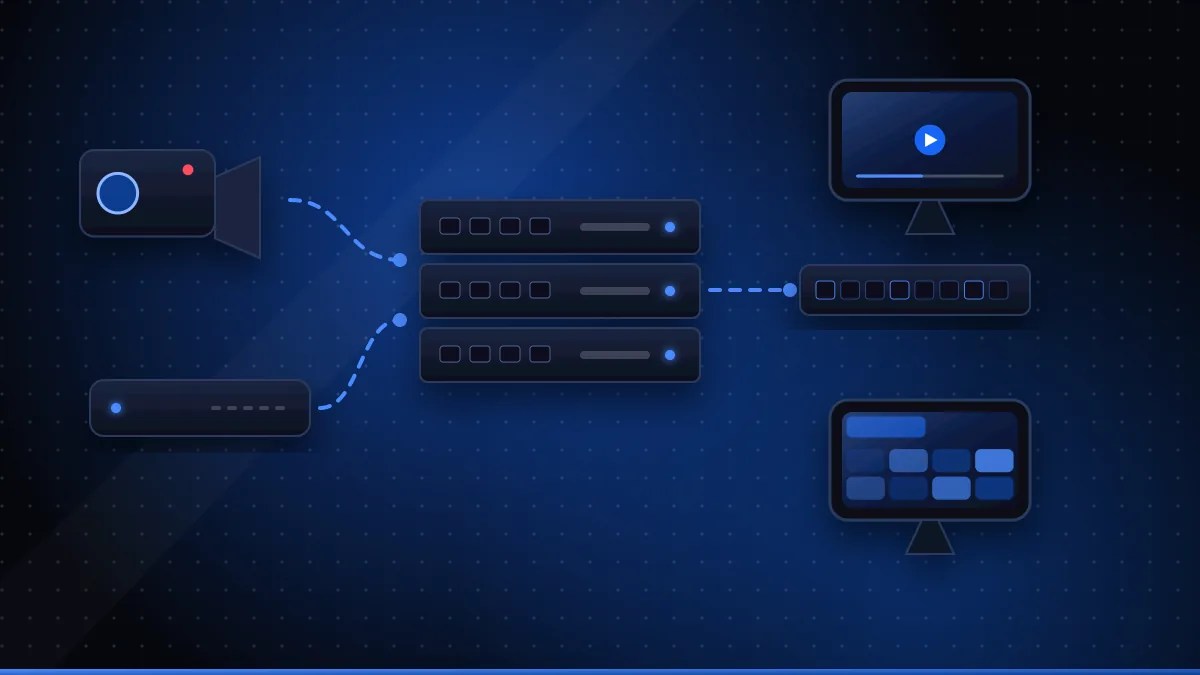
An HDMI encoder for IPTV is a compact box that takes the HDMI output of a device — a camera, PC, media player or presentation system — compresses it into H.264 or HEVC, and sends it onto your network as a stream that IPTV receivers, smart TVs, set-top boxes or software players can open. It is the simplest way to turn any HDMI source you control into an IPTV channel.
This guide explains how HDMI encoders work in practice, typical uses, and the features to compare when buying one, from inputs and HDCP to multicast and power over Ethernet.
How an HDMI encoder works
The signal path is short:
- The source sends video and audio over HDMI to the encoder's input.
- The encoder compresses the signal in real time.
- It wraps the result in a streaming format — typically UDP/RTP multicast, HLS, RTMP or SRT.
- Receivers on the network, or on the internet, open the stream address and play it.
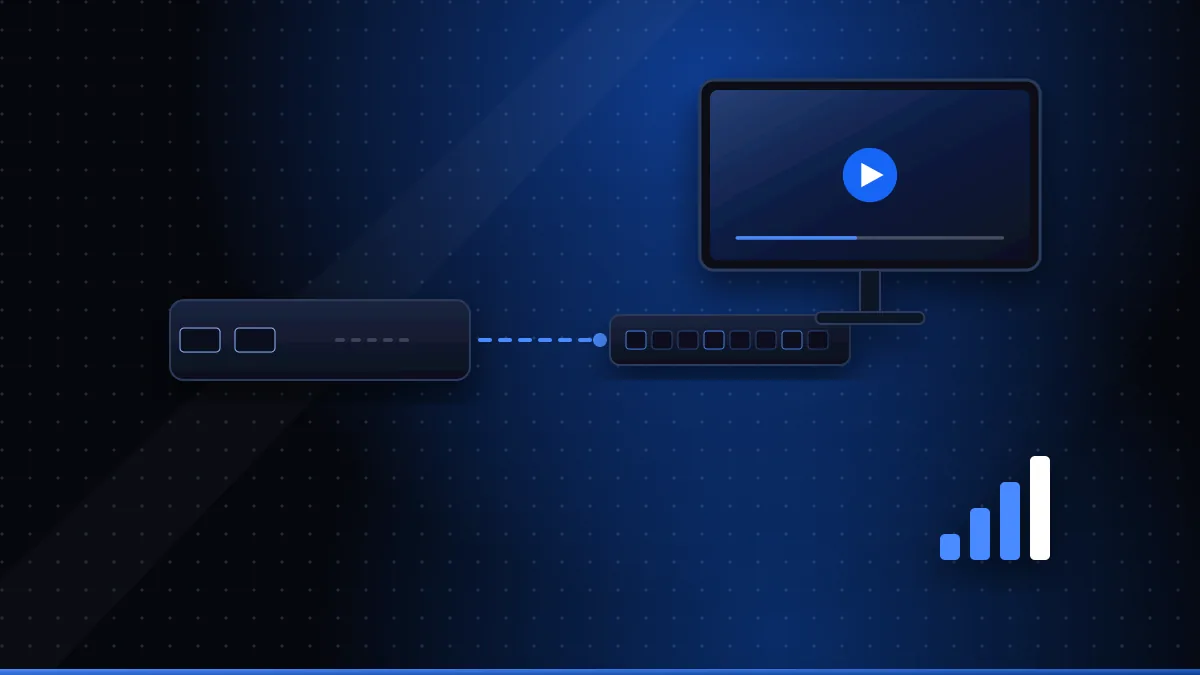
Many models also offer an HDMI loop-out, passing the original signal through to a local screen so you can monitor or display it without a separate splitter.
If you want the bigger picture of codecs, protocols and workflows, read our overview of IPTV encoders first.
Common uses
- Hotels and hospitals: in-house information channels and licensed TV feeds on room TVs.
- Corporate and education: live presentations, lectures and town halls streamed across a campus.
- Venues and sport: camera feeds and scoreboards sent to screens around a stadium or bar.
- Digital signage: a single media player feeding many displays over the existing network.
- Live streaming: sending a production switcher's output to an online platform.
In each case the encoder distributes content the organisation owns or is licensed to show. It is not a way to share a home TV subscription.
Input specifications to check
| Feature | Why it matters |
|---|---|
| HDMI version | HDMI 1.4 inputs typically handle up to 1080p60 or 4K30; 4K at 60 frames per second needs HDMI 2.0-class inputs |
| Supported resolutions and frame rates | Check your sources' exact output, including 1080i, 50/60 Hz and PC resolutions |
| Audio handling | Embedded HDMI audio, analogue audio input, and which audio codecs are output |
| Loop-out | Local monitoring without an extra splitter |
| EDID management | Lets the encoder tell the source which formats to send, preventing mismatches |
A frequent cause of "no signal" is a source outputting a format the encoder doesn't accept; EDID control solves most of these cases.
HDCP: a hard limit
Many commercial devices — streaming sticks, Blu-ray players and pay-TV boxes — protect their HDMI output with HDCP (Wikipedia (opens in a new tab)). A compliant HDMI encoder will show a black screen or refuse the signal when HDCP is active. That is by design: those sources are licensed for display, not redistribution. Plan your channels around sources that output unprotected HDMI and content you have the rights to distribute. Redistributing broadcast TV in commercial premises normally also needs a commercial licence from the rights holders.
Encoding and output features
- Codecs: H.264 for the widest compatibility; HEVC for 4K or lower bandwidth, if your receivers support it.
- Multiple streams: a main high-quality stream plus a lower-bitrate one for mobile or remote viewers.
- Protocols: UDP/RTP multicast for local distribution, HLS for apps and browsers, RTMP or SRT for online platforms (SRT on Wikipedia (opens in a new tab)).
- Bitrate control: constant bitrate (CBR) is easier to plan on busy networks; variable bitrate (VBR) can look better at the same average.
- Latency modes: useful when screens in the same room must stay in sync with a live event.
Network considerations for multicast
Multicast lets one stream reach hundreds of screens, but the network must cooperate:
- Use managed switches that support IGMP snooping, so multicast traffic only goes to ports that request it (IGMP on Wikipedia (opens in a new tab)).
- Enable an IGMP querier on the network (often on a core switch or router).
- Plan addresses: give each channel its own multicast group and port.
- Separate traffic with a dedicated VLAN for IPTV where possible.
- Test with a software player such as a desktop media player before rolling out to TVs.
Without IGMP snooping, multicast can flood every port and slow the whole network — a classic first-deployment mistake.
Power, form factor and management
- PoE (Power over Ethernet): powers the encoder through the network cable, simplifying installation behind screens or in ceilings.
- Size and mounting: small boxes for single sources; rack-mounted units with many inputs for headends.
- Web interface and API: for configuration and integration with management systems.
- Remote monitoring: alerts when an input drops or a stream stops.
- Firmware updates: check the manufacturer's update history; security fixes matter for networked devices.
Single-channel vs multi-channel encoders
| Single-channel box | Multi-channel rack unit | |
|---|---|---|
| Best for | One or a few sources in different places | Central headend with many sources |
| Installation | Next to the source | In a rack, with sources cabled to it |
| Redundancy | Spread across many boxes | Often dual power supplies and failover |
| Scaling | Add boxes as needed | Add cards or units |
Troubleshooting common problems
| Symptom | Likely cause | Fix |
|---|---|---|
| Black screen or "no signal" | HDCP on the source, or an unsupported input format | Use an unprotected source; set EDID to a supported format |
| Picture but no sound | Audio format not supported or not embedded | Set the source to stereo PCM; check the encoder's audio input setting |
| Whole network slows down | Multicast flooding without IGMP snooping | Enable IGMP snooping and a querier on managed switches |
| Stream stutters on some TVs | Codec or bitrate beyond the receiver's ability | Lower the bitrate or switch to H.264 for those receivers |
| Audio and video drift apart | Frame-rate mismatch or overloaded encoder | Match source and output frame rates; reduce encoding load |
| Stream works locally but not remotely | Multicast doesn't cross the internet | Add an HLS, RTMP or SRT output for remote viewers |
A buying checklist for an HDMI encoder
- List every source: resolution, frame rate, HDCP status, audio format.
- Confirm which codecs all your receivers decode in hardware.
- Choose the output protocols your receivers and platforms need.
- Decide on 1080p or 4K, and check network capacity for the bitrates involved.
- Check HDMI loop-out, EDID control and audio options.
- Confirm your switches support IGMP snooping for multicast.
- Consider PoE, mounting and remote management.
- Ask about firmware update history and support.
- Make sure every channel you distribute is licensed for that use.
Testing before deployment
Before installing encoders across a building, set up one channel end to end: source, encoder, switch and one of each receiver type. Check picture quality on fast motion, audio sync, channel-change speed and behaviour when the source is unplugged and reconnected. Our 4K IPTV guide explains how codecs and bitrates show up on the viewing side.
HDMI encoders vs watching IPTV at home
An HDMI encoder creates streams; it doesn't let you watch TV services. If you want to watch IPTV on your own TV, you need a compatible device, a player app and a service — see what IPTV is and the installation guide.
Summary
An HDMI encoder for IPTV converts any unprotected HDMI source you control into a network stream. Compare input formats and EDID handling, plan around HDCP, choose codecs your receivers can decode, pick protocols to suit local or internet delivery, and prepare the network for multicast with IGMP snooping. Test one channel end to end before scaling up, and make sure every source is licensed for distribution.
Frequently asked questions
Can an HDMI encoder stream to many TVs at once?
Yes. With UDP multicast on a properly configured network, one encoder stream can reach many receivers without multiplying network traffic.
Why does my HDMI encoder show a black screen?
Common causes are HDCP protection on the source, an unsupported input resolution or frame rate, or an EDID mismatch between the source and the encoder.
Do I need a 4K HDMI encoder?
Only if your sources and receiving screens are 4K and your network can carry the higher bitrate. Many signage and hotel channels work well in 1080p.
Questions about XCode IPTV 8K?
Compare subscription plans, try the free 24-hour trial, or read the installation guide.
Need help? WhatsApp +44 7446 191096 or Telegram @Xtreamtech