
XCodes IPTV for Android
For Android phones, tablets and Android TV / Google TV boxes. Follow the installation instructions on the compatible Android device you want to watch on.
Download / Install InstructionsOfficial app
Install the XCodes IPTV app on your compatible streaming device. Follow our installation instructions for Fire TV Stick, Android phones, tablets, and Android TV boxes, or explore compatible player apps for other devices.
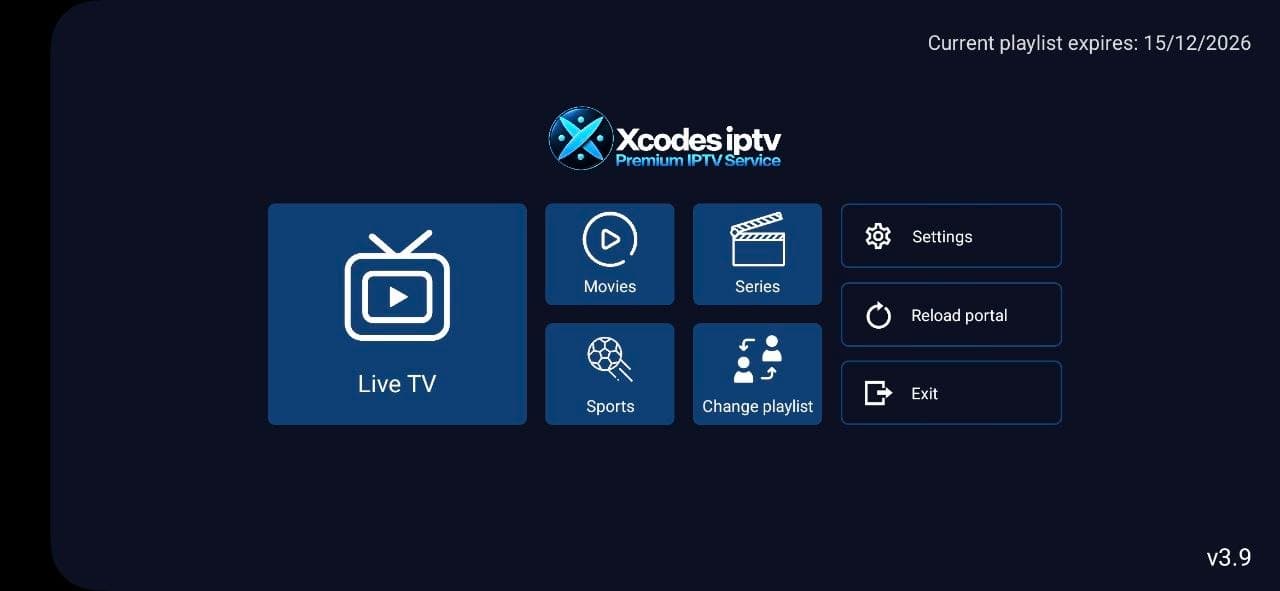
The official XCodes IPTV app for Android devices and Fire TV Stick. Sign in with the account details provided with your subscription or trial.
For Android phones, tablets and Android TV / Google TV boxes. Follow the installation instructions on the compatible Android device you want to watch on.
Download / Install InstructionsEnter this code in the Downloader app on your Fire TV Stick to open the XCodes IPTV app download.
Need more help? Read the full installation guide or contact support.
Before installing, check the file shown by Downloader is an XCodes IPTV app file. If anything looks different, stop and message support. Our guide to IPTV on Firestick explains Downloader and app safety in more detail.
See our guide to installing IPTV apps on Android safely, and the Android setup steps.
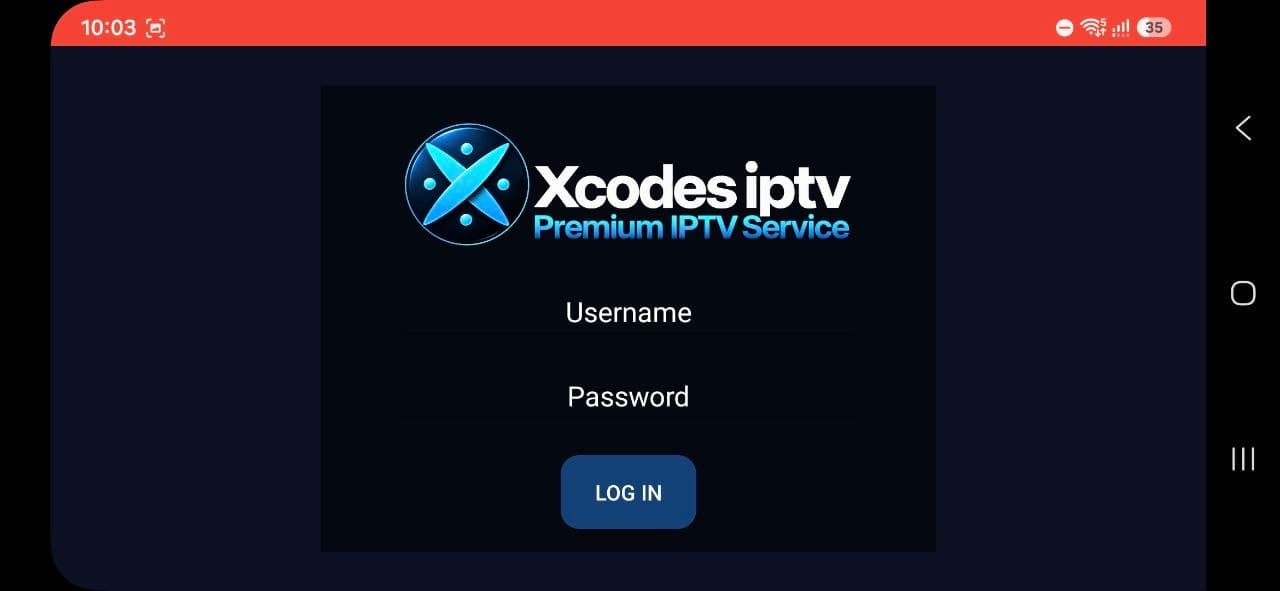
The app asks for a username and password. Use the account details provided with your XCode IPTV 8K subscription or free 24-hour trial, entered exactly as supplied. If sign-in fails, see IPTV logins explained or ask support.
Browse channel categories with the programme guide alongside.
On-demand films, sorted and searchable.
TV shows organised by category.
A dedicated sports section on the home screen.
Switch between playlists without reinstalling.
Adjust preferences and reload the portal.
Screens shown are from the app itself. Channel and title availability can change.
Prefer another player, or watching on a device our app doesn't cover? These third-party players can be used with your account details. They are not affiliated with XCode IPTV 8K and do not provide content themselves; availability varies by device model and country.
Phones, tablets and Android TV / Google TV boxes.
Our own app for Android devices, Android TV boxes and Fire TV Stick.
See our app & code 5496614A third-party player. Download it from the developer's official website or your device's app store.
A third-party player. Its developer states that it does not sell or provide any content.
Code as listed on the developer's official website.
A third-party player designed for Android TV. It provides no content of its own.
Amazon Fire TV devices run Fire OS, which is based on Android.
Our own app for Android devices, Android TV boxes and Fire TV Stick.
See our app & code 5496614A third-party player. Download it from the developer's official website or your device's app store.
A third-party player. Its developer states that it does not sell or provide any content.
Code as listed on the developer's official website.
A third-party player designed for Android TV. It provides no content of its own.
Confirm availability for your Apple TV model on the developer's site or the App Store.
A third-party player. Its developer states that it does not sell or provide any content.
Availability depends on your TV model and country.
A third-party player. Download it from the developer's official website or your device's app store.
A third-party player. Its developer states that it does not sell or provide any content.
Availability depends on your TV model and country.
A third-party player. Download it from the developer's official website or your device's app store.
A third-party player. Its developer states that it does not sell or provide any content.
Downloader codes for third-party apps are shown only when they match the developer's official website. Install apps only from official websites or app stores, and check what you are installing before approving it.
Questions about accounts, connections or devices? See the FAQ and the list of supported devices, or compare subscription plans.
Message support on WhatsApp or Telegram and we'll help you get watching.