On this page
- Smart TV platforms and their app stores
- How MAC-address activation works
- Step-by-step setup on a Samsung or LG TV
- Finding your TV's MAC address
- Choosing a Smart TV player
- Getting the best picture and stability
- Troubleshooting Smart TV IPTV
- When a streaming device is the better option
- Privacy and safety
- Smart TVs and XCode IPTV 8K
- Summary
"Smart IPTV" usually means watching IPTV directly on a Smart TV using a player app from the TV's own app store — on Samsung (Tizen), LG (webOS), Android TV / Google TV and other platforms — without a separate box. Some of these players are named Smart IPTV, SET IPTV or Net IPTV; others have different names. All of them play content from an IPTV service you add; none includes channels on its own.
This guide explains how Smart TV IPTV apps work, why many of them use the TV's MAC address, how to set one up, and what to do when things go wrong.
Smart TV platforms and their app stores
| TV brand / platform | App source | Notes |
|---|---|---|
| Samsung (Tizen) | Samsung app store | Limited choice; MAC-based apps are common |
| LG (webOS) | LG Content Store | Similar to Samsung |
| Android TV / Google TV (Sony, TCL, Philips and others) | Google Play | Widest choice; same apps as Android TV boxes |
| Other platforms | Manufacturer stores | Choice varies; check before buying a service |
If your TV runs Android TV or Google TV, our Android IPTV guide applies. The rest of this article focuses on TVs with their own app stores, such as Samsung and LG.
How MAC-address activation works
Typing a long playlist link with a TV remote is painful, so several Smart TV players use a different method:
- You install the player from the TV's app store.
- The app shows your TV's MAC address — a hardware network identifier — and sometimes a device key.
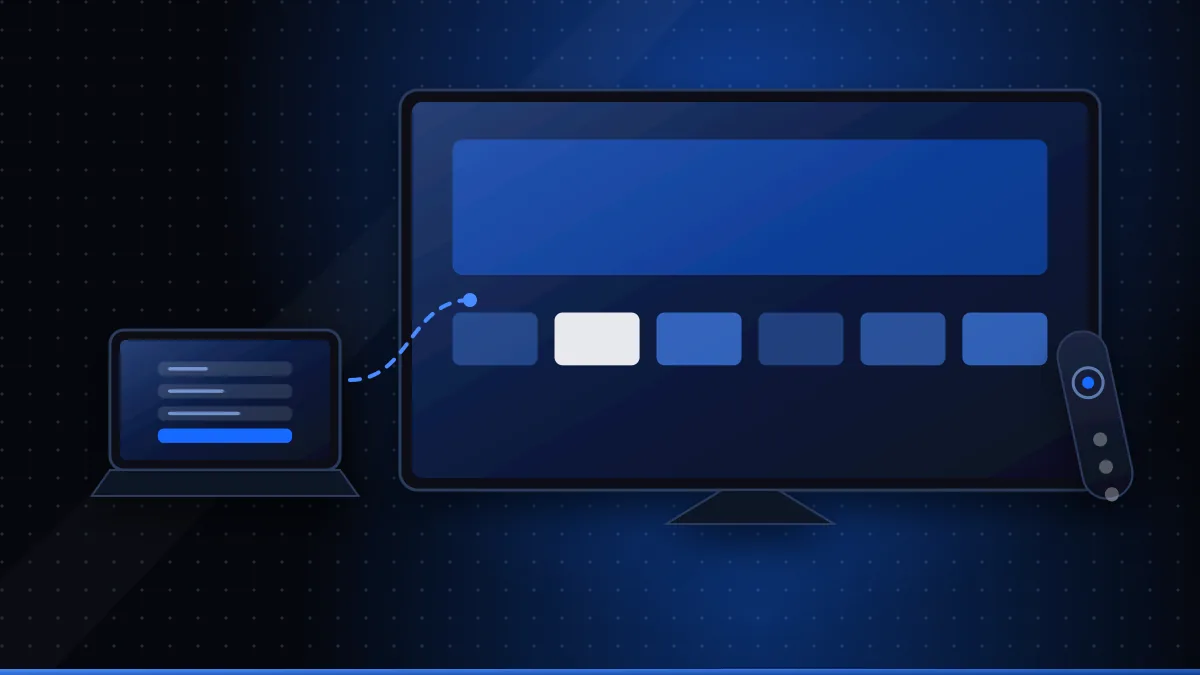
- On a phone or computer, you visit the player developer's official website and enter the MAC address with your playlist link or login.
- The app downloads the playlist the next time it starts.
Apps such as Smart IPTV (often shortened to SIPTV) and SET IPTV are well-known examples of this approach. Some offer a free trial period and then ask for a one-time activation fee per TV, paid to the app developer; check the developer's site for current terms. This fee is for the player only, separate from your IPTV service.
Step-by-step setup on a Samsung or LG TV
- Update the TV's software in its settings menu.
- Open the app store and search for the IPTV player your provider recommends.
- Install and open the app. Note the MAC address or device ID it displays.
- Add your playlist. Either enter your login directly in the app, or use the developer's website with the MAC address, depending on how the app works.
- Restart the app so it loads the playlist and guide.
- Set the timezone in the app if guide times are wrong.
- Hide unused categories and create favourites to make navigation easier.
If your provider gives a server login (often called an Xtream Codes login), some TV apps accept it directly — see IPTV logins explained.
Finding your TV's MAC address
If an app asks you to register a MAC address on the developer's website, use the address the app itself displays — that's the one it checks. Some TVs have separate addresses for Wi-Fi and wired networking, so if you later switch from Wi-Fi to Ethernet, the app may show a different address and need registering again. Copy it carefully: the characters 0 and O, or 1 and I, are easy to confuse on a TV screen, and a single wrong character means the playlist never appears.
Choosing a Smart TV player
Consider:
- Login support — M3U only, or server logins too.
- Remote navigation — big, clear menus and a usable guide grid.
- Activation model — free, ad-supported or one-time fee.
- Developer transparency — an official website, privacy policy and clear terms.
- Speed on your TV — some apps struggle with very large playlists on older models.
Our broader guide to IPTV players covers players on other devices.
Getting the best picture and stability
- Use Ethernet if your TV has a network port; Wi-Fi in TVs is often weaker than in phones.
- Check the TV's video decoding. 4K HEVC streams need a TV that supports them; see 4K IPTV explained.
- Turn off motion smoothing if sport looks unnatural.
- Trim large playlists with category hiding or a playlist editor, which helps slower TVs — see IPTV playlist editors.
Troubleshooting Smart TV IPTV
| Problem | Likely cause | Fix |
|---|---|---|
| Playlist doesn't appear | App not restarted; wrong MAC address entered | Restart the app; recheck the MAC address carefully |
| "Playlist error" | Link incomplete or account expired | Re-add the link; check expiry |
| App missing from store | Not available in your country or TV model | Use another player or a streaming device |
| Slow menus | Very large playlist on an older TV | Hide categories; use a server login if supported |
| No sound on some channels | Audio format not supported by the TV app | Try another player or audio track setting |
For more general issues, see why IPTV stops working.
When a streaming device is the better option
If your TV's app store has few players, the apps are slow, or the TV no longer receives updates, a small streaming device connected by HDMI is often the simplest upgrade. Google TV devices, Android TV boxes and Fire TV sticks offer more player choice. See our IPTV box guide for the options.
Privacy and safety
- Install players only from the TV's official app store.
- Use the developer's official website for MAC-based uploads — copycat sites exist.
- Remember that whoever holds your playlist link can use your account; keep it private.
Smart TVs and XCode IPTV 8K
Smart TVs are an officially supported platform for XCode IPTV 8K. The Smart TV setup steps explain the process, and support can recommend a player for your TV model. Test it on your own TV with the free 24-hour trial before choosing a plan.
Summary
Smart IPTV lets you watch directly on your TV with a player app from its store. On Samsung and LG TVs, many players link your playlist to the TV's MAC address through the developer's website, and some charge a one-time activation fee for the app itself. Use official sources, wired networking where possible, and a streaming device if your TV's app choice or performance falls short.
Frequently asked questions
What is SIPTV?
SIPTV is a common shorthand for the Smart IPTV app and its website. Like similar Smart TV players, it plays playlists you add; it doesn't provide channels.
Why does my Smart TV IPTV app ask for a MAC address?
Some Smart TV players link your playlist to the TV's MAC address through the developer's website, because typing long links with a TV remote is awkward.
Can I use IPTV on an older Smart TV?
Possibly, but older TVs may not get current app versions or support newer codecs. A small streaming device plugged into the TV is often the easier fix.
Questions about XCode IPTV 8K?
Compare subscription plans, try the free 24-hour trial, or read the installation guide.
Need help? WhatsApp +44 7446 191096 or Telegram @Xtreamtech