On this page
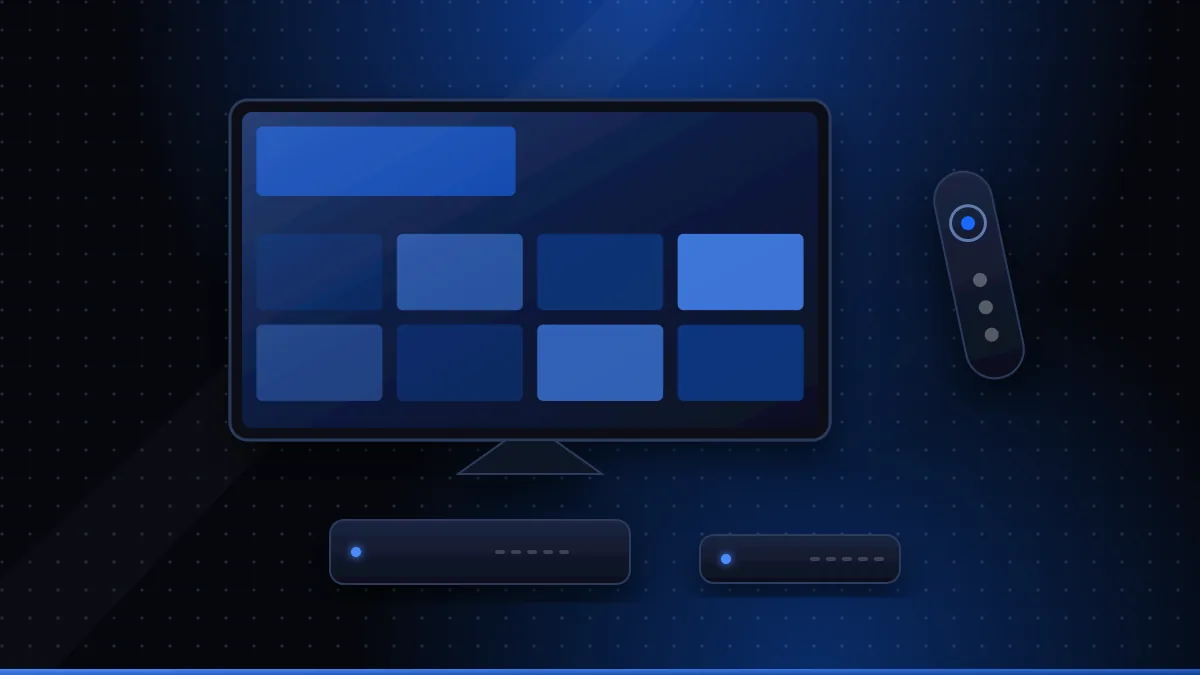
An IPTV box is a small device that connects to your TV and runs IPTV player software, so you can watch live channels and on-demand content even if your TV's own apps are limited. The main types are Google TV / Android TV devices, MAG-style set-top boxes that use portal logins, streaming sticks such as Fire TV, and budget unbranded Android boxes. Each suits a different kind of viewer.
The box is only hardware and software: channels come from the IPTV service you subscribe to. This guide compares the types, explains what specifications matter, and shows how setup differs between them.
The main types of IPTV box
| Type | How you watch IPTV | Strengths | Watch-outs |
|---|---|---|---|
| Google TV / Android TV device | Install a player from Google Play | Huge app choice; updates; remote-friendly | Quality varies by model |
| MAG-style set-top box | Enter a portal URL; account tied to MAC address | Simple, TV-like experience | Fewer apps; depends on portal support |
| Streaming stick (e.g. Fire TV) | Install a player from the store or sideload | Cheap, compact | Weaker Wi-Fi and storage |
| Unbranded Android box | Install APKs or preinstalled apps | Low price | Old software, no Play Store, security risks |
More background on set-top boxes in general is on Wikipedia (opens in a new tab).
What makes the best IPTV box?
Whatever type you choose, these specifications matter most:
- Hardware video decoding, especially HEVC (H.265) if you want 4K. Without it, 4K streams stutter. See 4K IPTV explained.
- A wired Ethernet port or modern Wi-Fi (Wi-Fi 5 or 6). Stable networking beats raw processing power.
- Enough memory and storage for large channel lists and guide data.
- Software updates from the manufacturer, for security and app compatibility.
- A decent remote — you'll use it constantly.
- Official app store access, so players install and update safely.
Android TV and Google TV devices
For most people, a Google-certified Android TV or Google TV device is the best IPTV device to start with. You get the Play Store, the widest choice of players, regular updates and voice search. Setup is simply: install a player, add your login, and you're watching. Our Android IPTV guide covers player choice and safe installation.
MAG boxes and portal logins
MAG boxes, made by Infomir, are set-top boxes designed around portals. Instead of installing an app and typing credentials, you:
- Find the box's MAC address (printed on a label and shown in its settings).
- Give the MAC address to your IPTV provider, which links your account to it.
- Enter the provider's portal URL in the box's settings.
- Restart; the portal loads channels and the guide.
This makes MAG boxes feel like traditional cable boxes, which some households prefer. If you're comparing models such as the MAG 322, check that your provider supports portal logins before buying, and that the model decodes the formats your service uses. See IPTV logins explained for how portals differ from other login types.
Streaming sticks
Sticks plug straight into an HDMI port and are the cheapest way to add IPTV to an older TV. They work well for HD, but their Wi-Fi and storage are limited. Use an Ethernet adapter if possible and keep storage free. For Amazon devices, see IPTV on Firestick.
Budget Android boxes
Unbranded boxes — often sold under model names like "MXQ Pro 4K" — are tempting because they're cheap and advertise 4K. Common issues include:
- Outdated Android versions that no longer receive security updates.
- No Google Play Store, so apps must be sideloaded.
- Weak processors and slow storage that make large playlists sluggish.
- Advertised specifications that don't match real-world performance.
They can work for simple use, but a certified device is usually better value over time.
Avoid "fully loaded" boxes
Some sellers offer boxes preloaded with apps or add-ons that stream paid channels without permission. In Stichting Brein v Wullems (C-527/15), the Court of Justice of the EU held that selling such devices can infringe copyright (CURIA (opens in a new tab)). Beyond the legal issue, preloaded software is a common source of malware. Buy plain hardware and add a service you've chosen yourself. Our article Is IPTV legal? explains the wider picture.
Setting up a new IPTV box
- Connect the box to the TV by HDMI and to your router by Ethernet if possible.
- Run system updates before installing anything else.
- Install your chosen player from the official store, or configure the portal on a MAG box.
- Add your login or portal details.
- Set the timezone and display resolution to match your TV.
- Hide unused categories and set favourites.
Getting the display settings right
A box that's set up badly can make a good stream look poor. After installation:
- Match the resolution to your TV. Set 4K output for a 4K TV and 1080p for a Full HD TV, rather than relying on automatic detection that sometimes picks a lower mode.
- Turn on frame-rate matching if offered. It lets the box switch to the frame rate of the programme, which reduces judder on films and sport.
- Check the audio output. Choose stereo or passthrough depending on whether you use TV speakers or a soundbar.
- Disable aggressive power saving that drops the network connection when the box is idle.
Box vs Smart TV vs computer
| If you… | Consider |
|---|---|
| Have a recent Smart TV with good apps | Watching directly on the TV — see IPTV on Smart TVs |
| Have an older or slow TV | A Google TV / Android TV device |
| Want a cable-box feel | A MAG-style portal box (if supported) |
| Mostly watch on a desk | A computer player — see IPTV on Windows and Mac |
XCode IPTV 8K and boxes
XCode IPTV 8K supports Android devices — including Android TV boxes — as well as iOS, PC and Smart TVs. If you're considering a particular box or a MAG-style device, ask support to confirm compatibility before you buy, and test with the free 24-hour trial.
Summary
The best IPTV box for most people is a Google-certified Android TV or Google TV device with HEVC decoding and Ethernet. MAG-style boxes suit households that prefer a portal-based, cable-like experience, while sticks are a cheap way to upgrade an older TV. Avoid outdated unbranded boxes and anything sold "fully loaded" — buy plain hardware and pair it with a service you've tested.
Frequently asked questions
Do I need an IPTV box?
Not if your Smart TV, phone or computer runs a good IPTV player. A box helps when your TV's apps are limited or slow.
What is an IPTV portal?
A portal is a login method used by MAG-style boxes: you enter a portal URL and the provider links your account to the box's MAC address.
Are 'fully loaded' IPTV boxes legal?
Boxes preloaded with access to paid channels without a licence are not lawful to sell in the UK and EU. Buy plain hardware and add a legitimate service yourself.
Questions about XCode IPTV 8K?
Compare subscription plans, try the free 24-hour trial, or read the installation guide.
Need help? WhatsApp +44 7446 191096 or Telegram @Xtreamtech