On this page
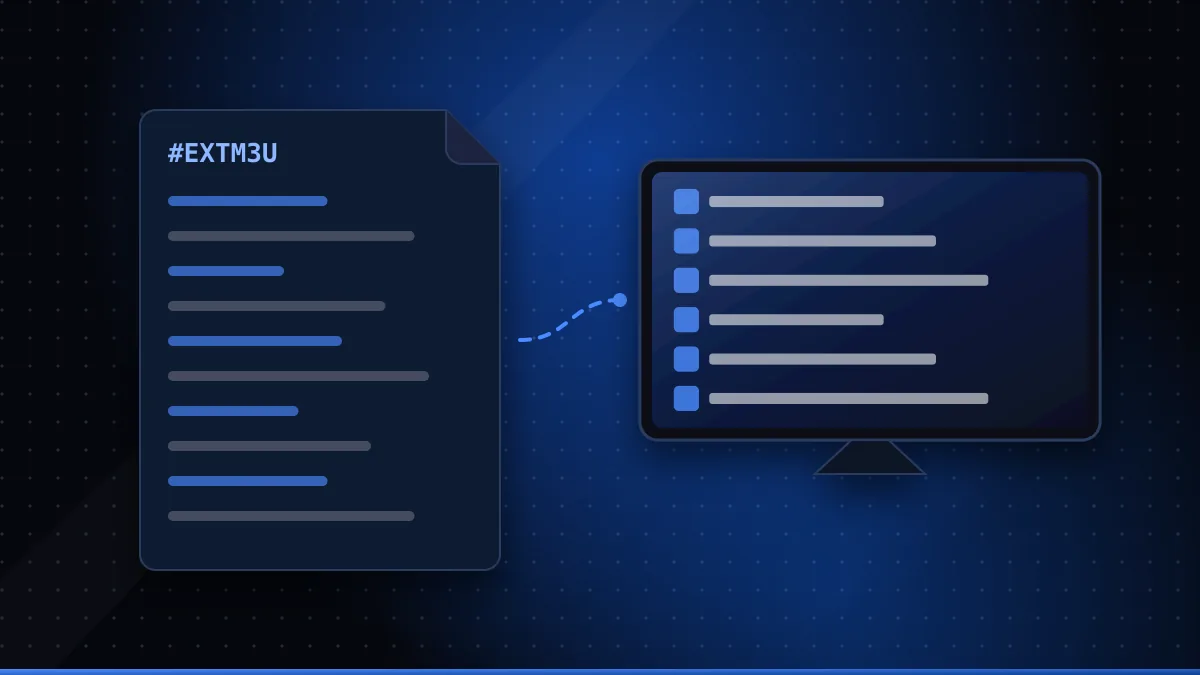
An IPTV playlist is a text file — usually in M3U or M3U8 format — that lists channels and the web address of each stream, so a player app can show them as a channel list. When a provider gives you an "M3U link" or "IPTV URL", it is giving you the address of that file. The playlist itself contains no video; it only tells the player where to find it.
Understanding how playlists work makes setup and troubleshooting far easier. This guide explains the format, the difference between M3U and M3U8, how guide data is attached, and the errors you're most likely to see.
What's inside an M3U file
The M3U format began as a simple list of audio files and was later extended. A minimal IPTV playlist looks like this (simplified):
- The first line is
#EXTM3U, which marks the file as an extended M3U playlist. - Each channel then takes two lines: an
#EXTINFline with the channel's details, and a line with the stream URL.
The #EXTINF line commonly carries attributes that players understand:
| Attribute | Purpose |
|---|---|
tvg-id | Matches the channel to its entry in the programme guide |
tvg-name | The channel's name for guide matching |
tvg-logo | Link to the channel logo image |
group-title | The category the channel appears under (e.g. News, Sport) |
| Text after the comma | The display name shown in the player |
These attributes are conventions widely supported by IPTV players rather than a formal standard, so support varies a little between apps. The Wikipedia article on M3U (opens in a new tab) has more background on the format's history.
Reading one entry
Picture a single channel entry. The #EXTINF line starts with -1, which tells the player the item is a live stream with no fixed length. It then lists attributes: a tvg-id such as a short code for the channel, a tvg-logo pointing to an image, and a group-title such as "News". After the comma comes the name viewers see. The very next line is the stream address. The player reads hundreds or thousands of these pairs, groups them by group-title, and shows the logos beside each name.
M3U vs M3U8
The difference is mostly encoding. An M3U8 playlist is an M3U file saved as UTF-8 text, which reliably handles accented and non-Latin characters in channel names. You'll also see .m3u8 in a different role: HTTP Live Streaming (HLS) uses M3U8 "media playlists" to list the short video segments that make up a single stream, as described in RFC 8216 (opens in a new tab).
So an IPTV playlist of channels can point to stream URLs that are themselves M3U8 HLS playlists. Your player handles both layers automatically.
Playlist links vs playlist files
Providers usually give you a link rather than a file. The player downloads the playlist from that link each time it refreshes, so channel changes on the provider's side appear automatically. A downloaded file is a snapshot that goes out of date.
A playlist link often contains your username and password as part of the URL. Treat it like a password:
- Don't post it in forums or screenshots.
- Don't paste it into tools you don't trust.
- Ask your provider to reset it if you think it has leaked.
How guide data is attached
Programme guide data usually comes from a separate file in XMLTV format. Some playlists include its address in the first line; otherwise you add the guide URL in the player's settings. The player then matches guide entries to channels using tvg-id. When the guide shows nothing for a channel, the ID in the playlist doesn't match any ID in the guide data. See electronic programme guides (opens in a new tab) for background on EPGs.
Loading an IPTV playlist: step by step
- Install a player that supports M3U playlists — see our guide to IPTV players.
- Choose "Add playlist" (wording varies) and select M3U URL.
- Paste the full IPTV link exactly as provided, including
http://orhttps://. - Add the EPG URL if your provider supplies one separately.
- Save, then let the player download channels and guide data. Large playlists can take a minute.
If your provider also offers a server login, you may prefer it: many players load the same content more quickly and with fewer errors that way. We compare the two in IPTV logins explained.
Playlist size and performance
Large playlists can contain thousands of channels plus extensive on-demand libraries. On powerful devices this is fine; on older Smart TVs and budget sticks it can make the player slow to load and laggy to scroll. If that happens, hide categories you don't use, ask whether your provider offers a server login (which lets the player load sections separately), or edit the list with a playlist tool.
Common playlist errors and fixes
| Symptom | Likely cause | Try this |
|---|---|---|
| "Invalid playlist" | URL copied incompletely or with spaces | Copy again; check the start and end of the link |
| Playlist loads, channels don't play | Account expired or connection limit reached | Check expiry; stop other devices streaming |
| Some channels play, others don't | Individual streams offline | Report the channels to support |
| Guide empty | No EPG URL, or IDs don't match | Add the EPG URL; ask support to check IDs |
| Guide times wrong | Player timezone or offset setting | Adjust the timezone/EPG offset in settings |
| Very slow loading | Huge playlist on a slow device | Hide unused groups — see IPTV playlist editors |
Public and "free" playlists
You'll find many public lists online. Some collect streams that broadcasters make publicly available; others contain links to content shared without permission. Be careful: a link being public doesn't mean it's licensed, and random lists are often broken or unsafe. Our article on free IPTV and public playlists covers this in detail.
Playlists with XCode IPTV 8K
When you subscribe to XCode IPTV 8K or take the free 24-hour trial, support provides your login details and helps you add them to the right player. The installation guide covers Android, iOS, PC and Smart TVs.
Summary
An IPTV playlist is a simple text file — M3U or its UTF-8 sibling M3U8 — that lists channel names, categories, logos and stream addresses. Players download it from a link, attach programme guide data by matching IDs, and play the streams. Keep your playlist link private, add the EPG URL if needed, and use the error table above when something doesn't load.
Frequently asked questions
What is the difference between M3U and M3U8?
M3U8 is the same playlist format saved with UTF-8 text encoding, which handles non-English characters. HLS streaming also uses .m3u8 files to list video segments.
Is an IPTV playlist link the same as a subscription?
No. The link is how a player finds the channels. Whether you're entitled to watch them depends on the service that issued it.
Why does my playlist load but channels don't play?
The list loaded, but individual stream URLs failed. Common causes are an expired account, too many devices streaming at once, or a network problem.
Questions about XCode IPTV 8K?
Compare subscription plans, try the free 24-hour trial, or read the installation guide.
Need help? WhatsApp +44 7446 191096 or Telegram @Xtreamtech